Author: Saurabh Gawade

  • How Mandatory Uniforms Work in the Store Module

    How Mandatory Uniforms Work in the Store Module

    Overview

    This guide explains how Mandatory Uniforms work in the Store Module.

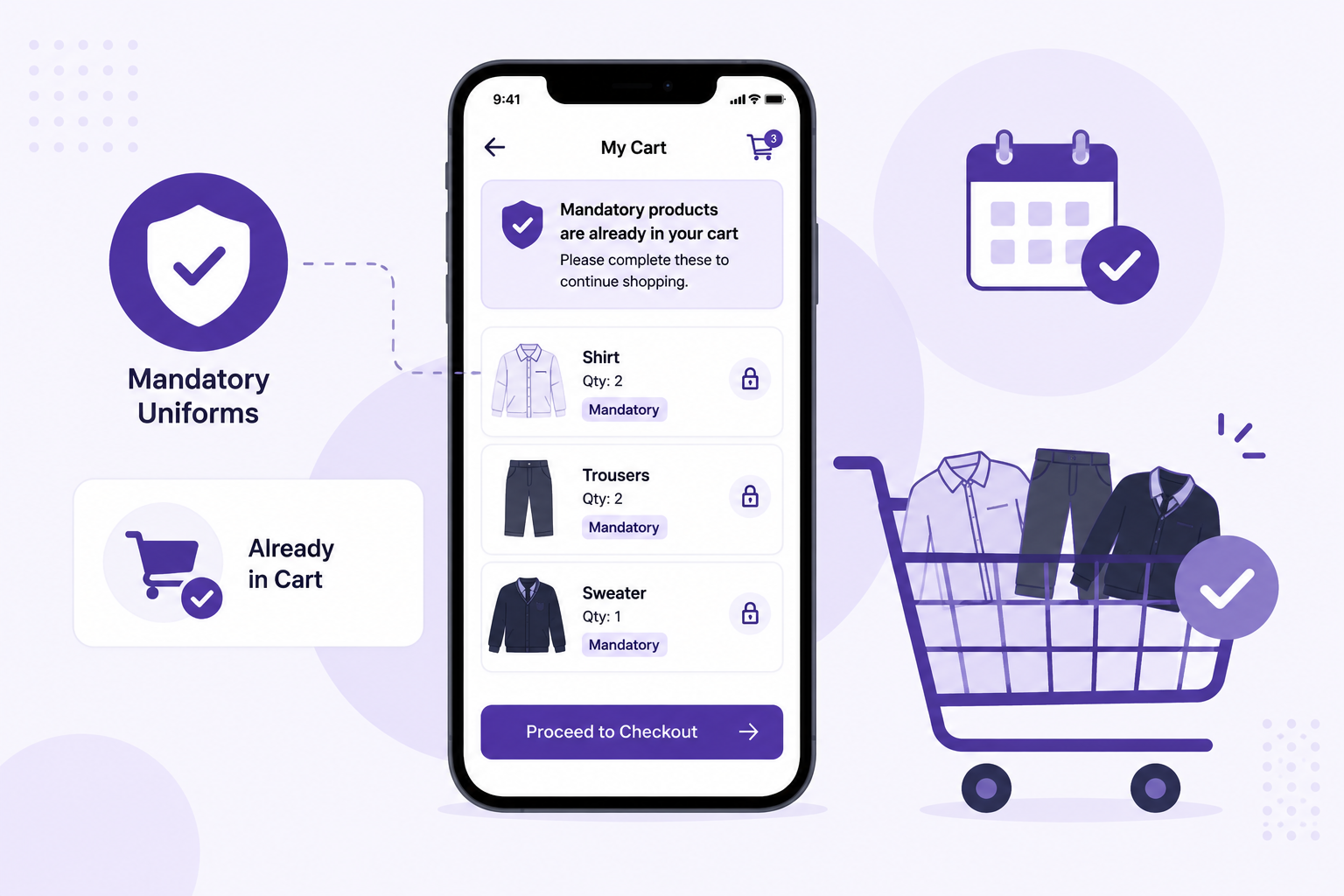
    For some students, a few uniforms may be marked as mandatory for the current academic year. These products are automatically added to the cart and need to be purchased first before buying other uniforms.

    This article will help you understand:

    • what mandatory uniforms are
    • how they appear in the cart
    • what actions are allowed and not allowed
    • what happens if a mandatory product is out of stock
    • what happens after mandatory uniforms are purchased

    What You’ll Learn

    • How mandatory uniforms are shown in the Store Module
    • How to identify mandatory products in the cart
    • What you can and cannot do with mandatory products
    • How to buy other uniforms along with mandatory uniforms
    • What happens if a mandatory uniform is out of stock
    • When the mandatory logic stops applying

    Who Can Use This

    Applicable Role:

    • Parent

    Before You Begin

    Before ordering mandatory uniforms, please note:

    • some uniforms may already be marked as mandatory for your child for the current academic year
    • these mandatory uniforms will be added to the cart automatically
    • mandatory uniforms need to be purchased first before buying other uniforms separately
    • this logic is applicable only for the current academic year
    • once the mandatory uniforms for that academic year are purchased, this logic will not apply again for the same academic year

    How Mandatory Uniforms Work

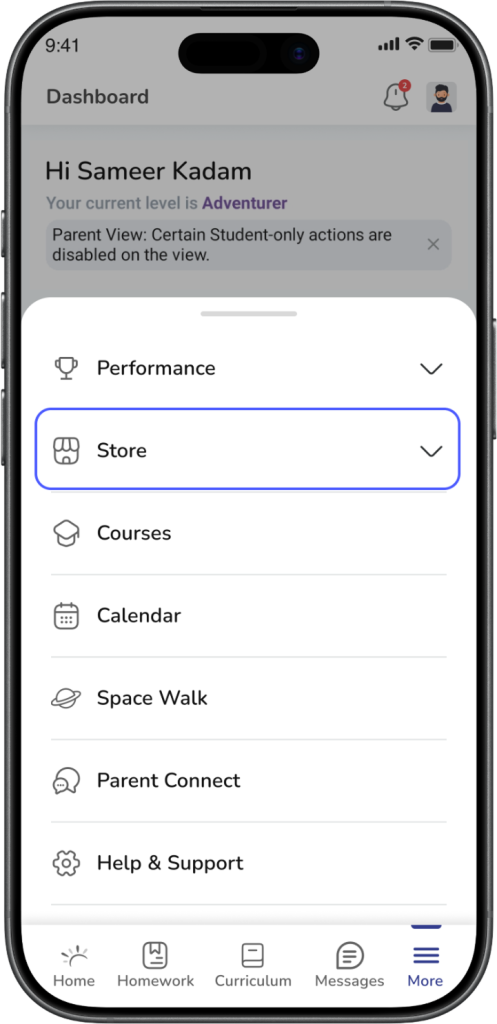
    Step 1: Open the Store Module

    Log in to the app as a Parent.

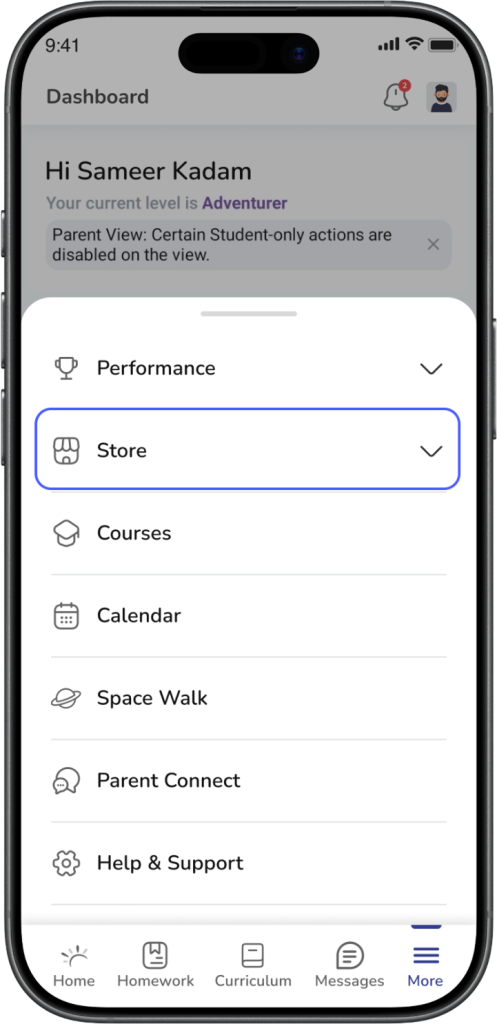
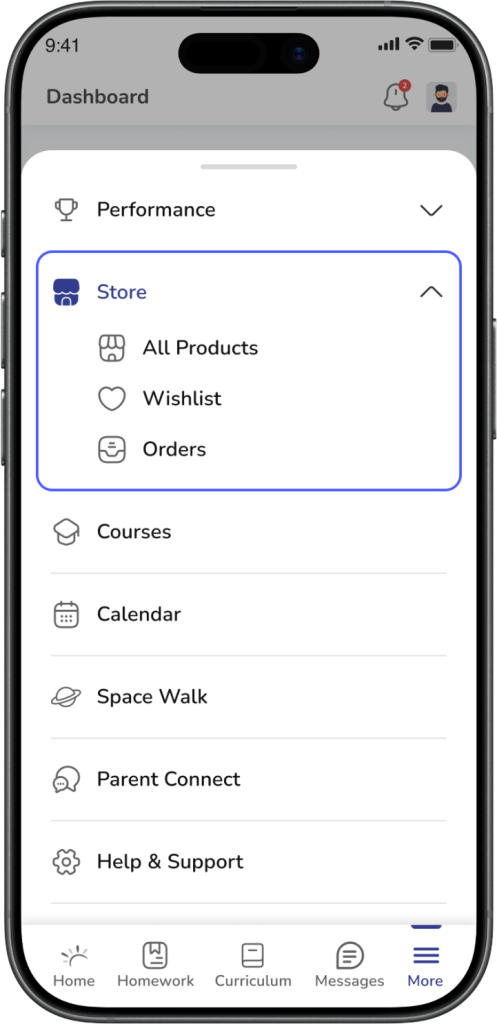
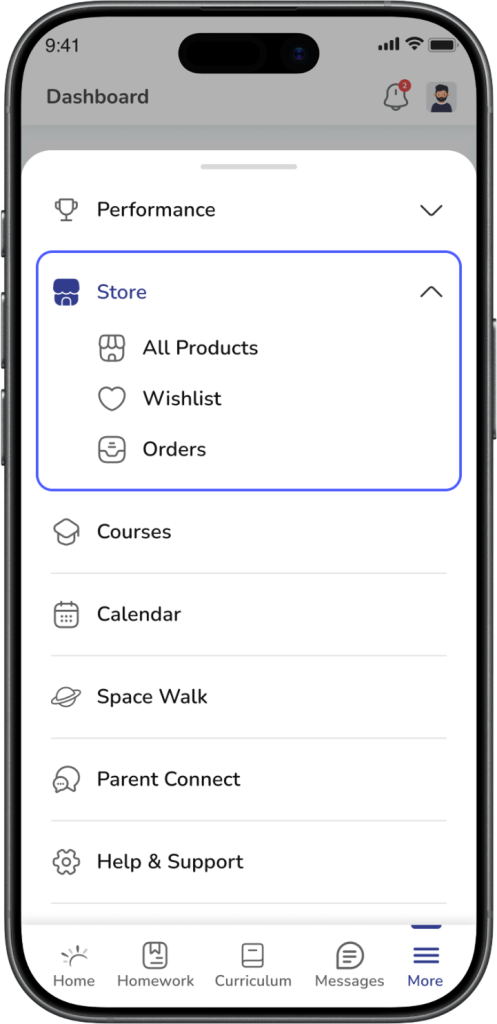
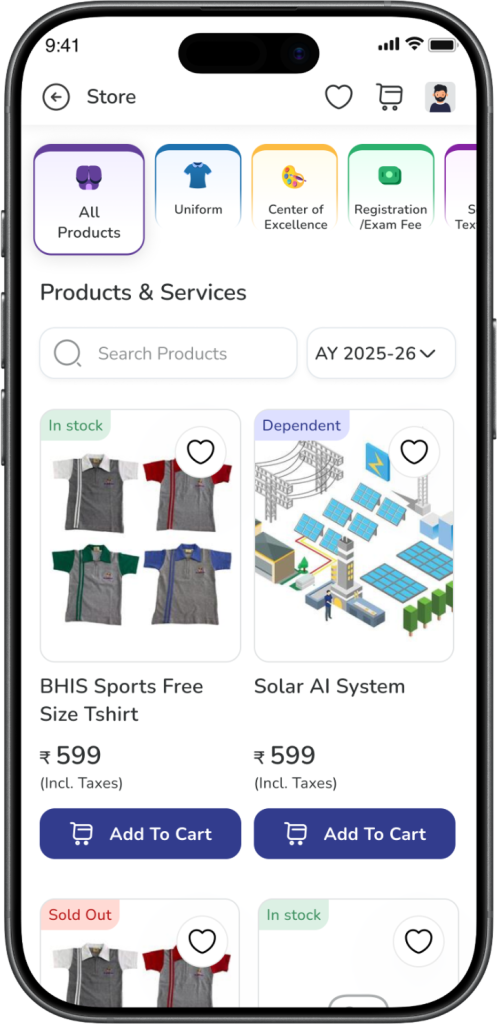
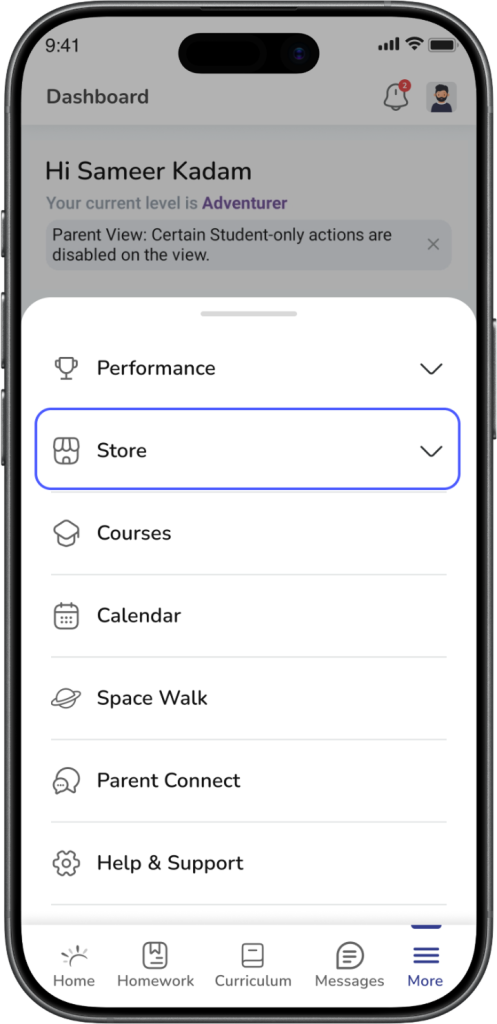
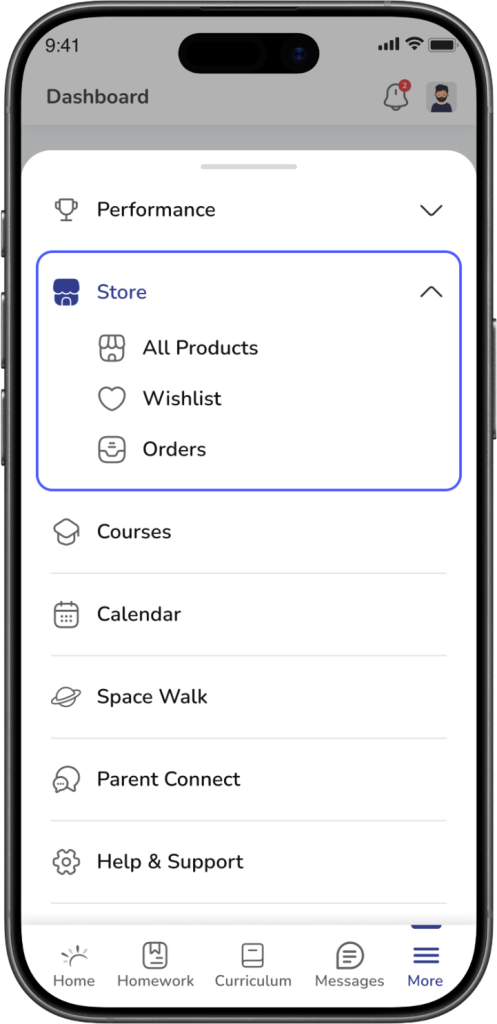
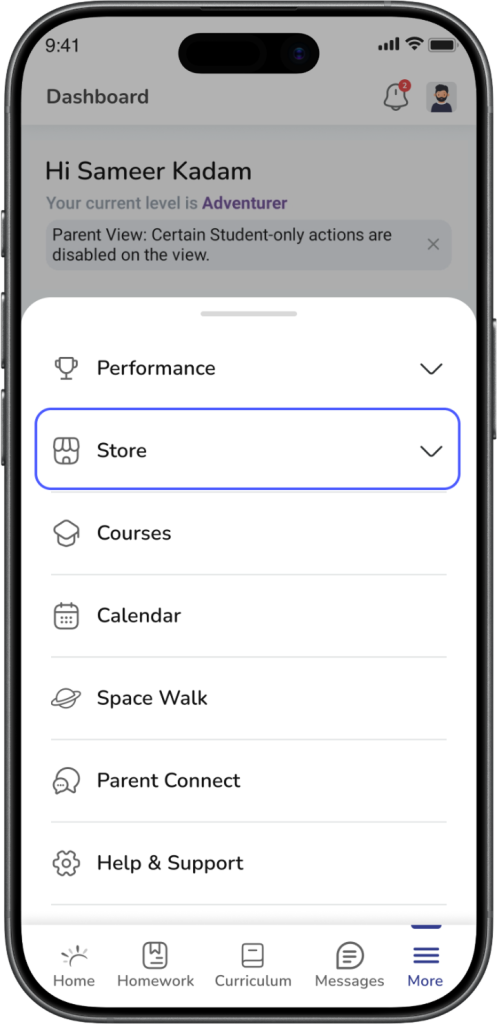
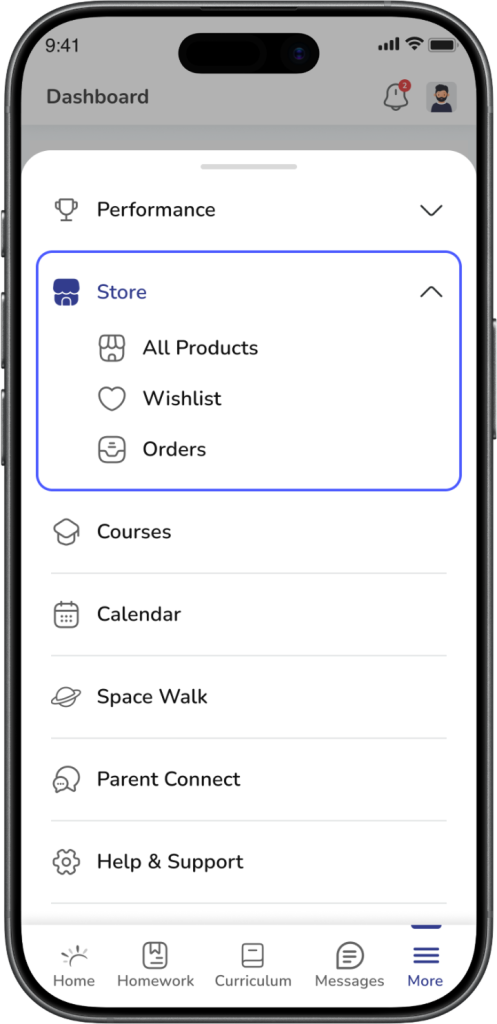
    Go to: More → Store → All Products
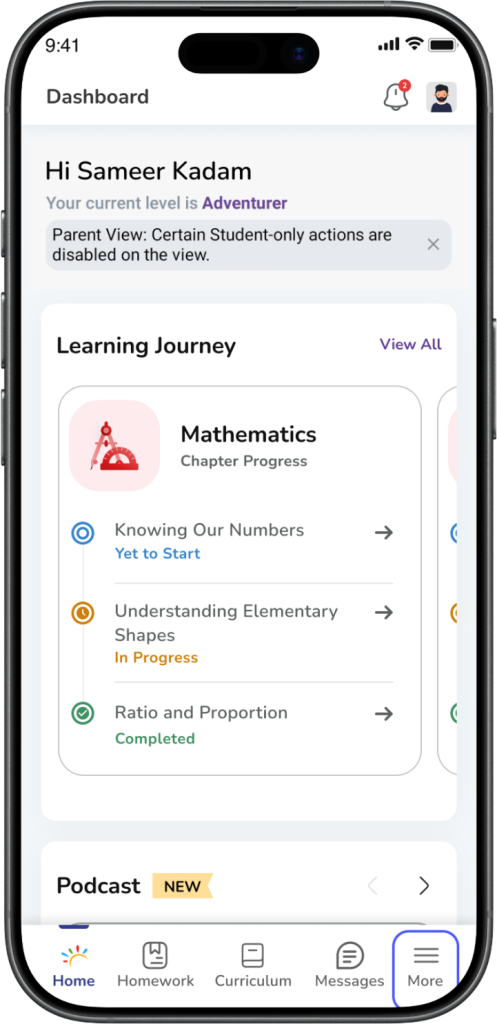
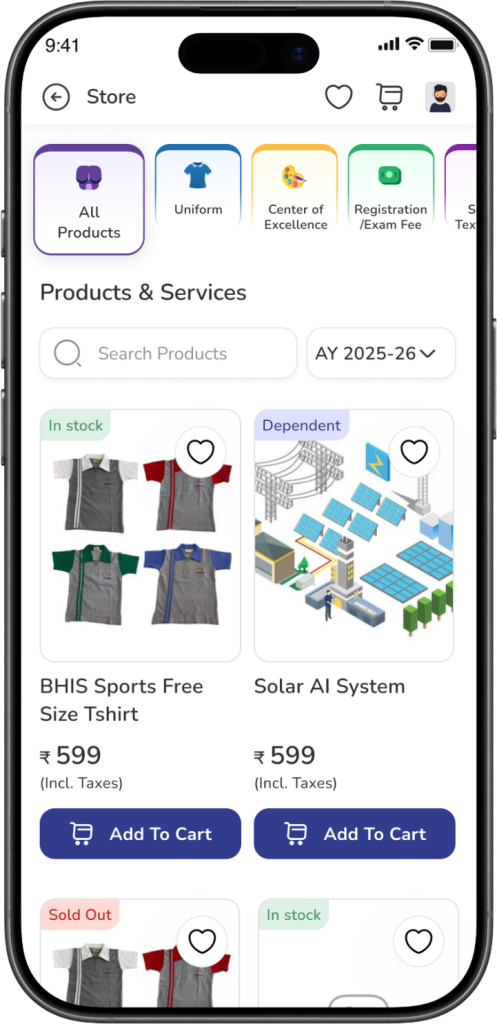
    Expected Result: You land on the Store Module page.


    Step 2: Check if mandatory products are already added

    If mandatory uniforms are applicable for your child, they will already be added to your cart.

    You may also see a message or prompt informing you that mandatory products are already in the cart and asking you to continue from the cart.
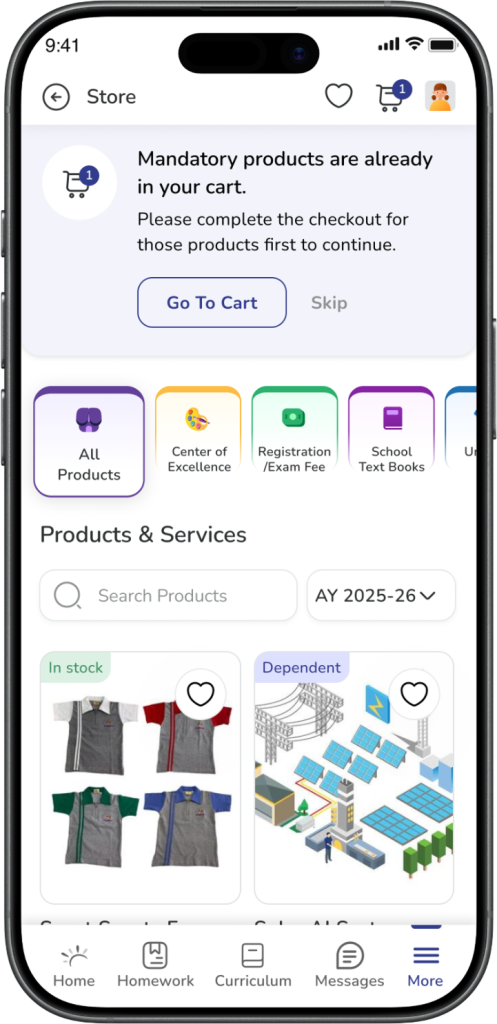
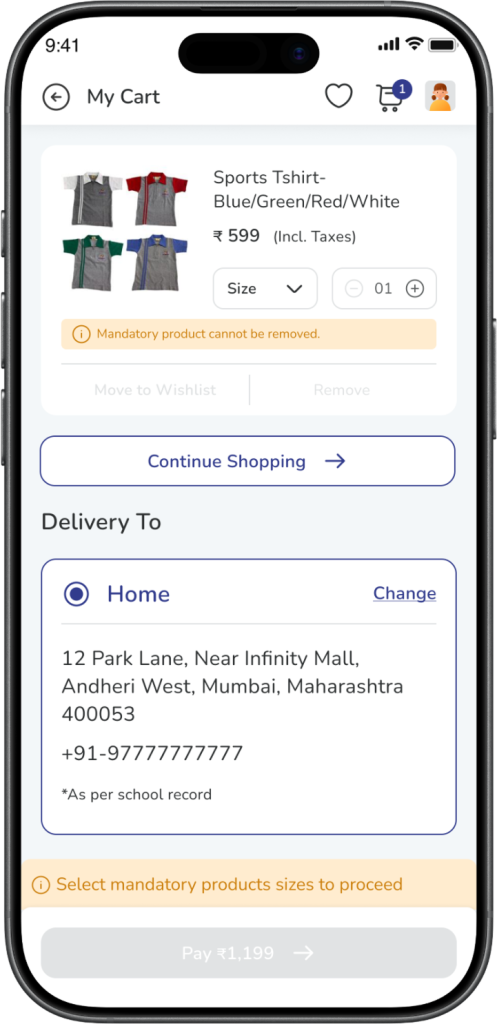
    Expected Result: Mandatory products are already available in the cart before you place the order.


    Step 3: Open the cart

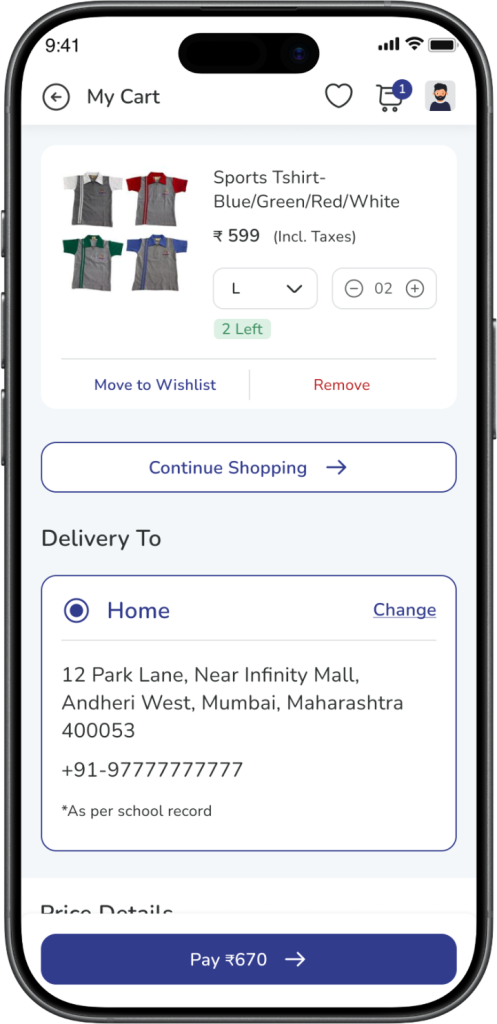
    Open the Cart to review the mandatory uniforms.

    In the cart, the mandatory products will be clearly shown as products that:

    • are already added
    • cannot be removed
    • must be purchased before proceeding with other uniform purchases
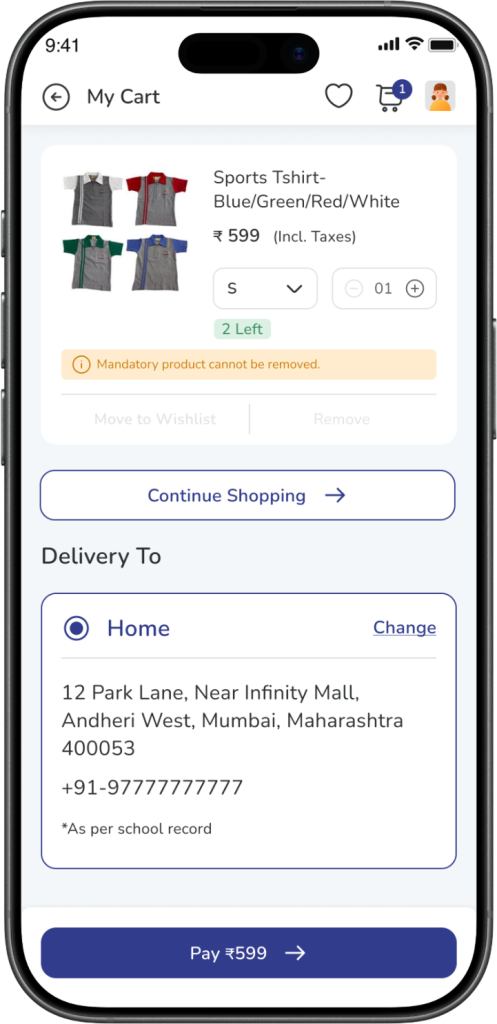
    Expected Result: You can see all mandatory products in the cart.


    Step 4: Select size for each mandatory product

    For every mandatory uniform, you need to select the required size.

    Until all required mandatory product sizes are selected, you will not be able to continue with payment.
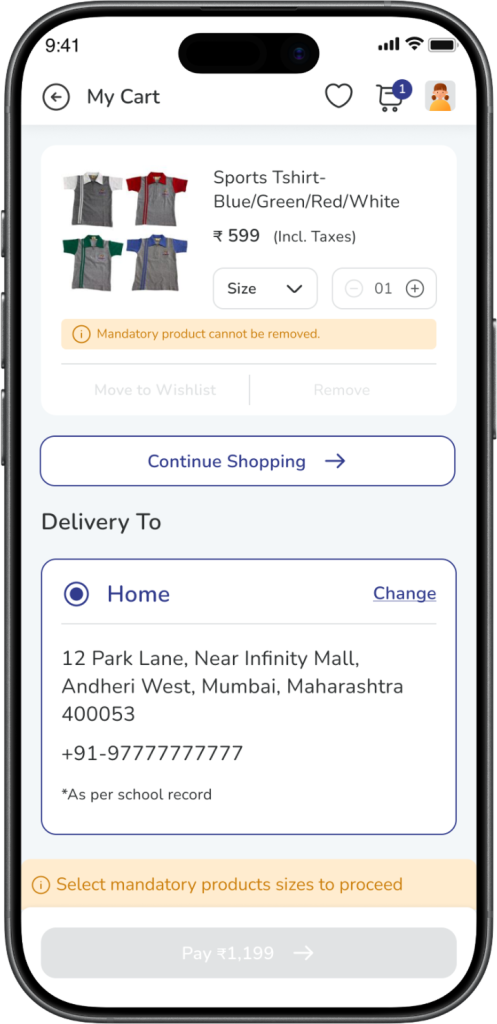
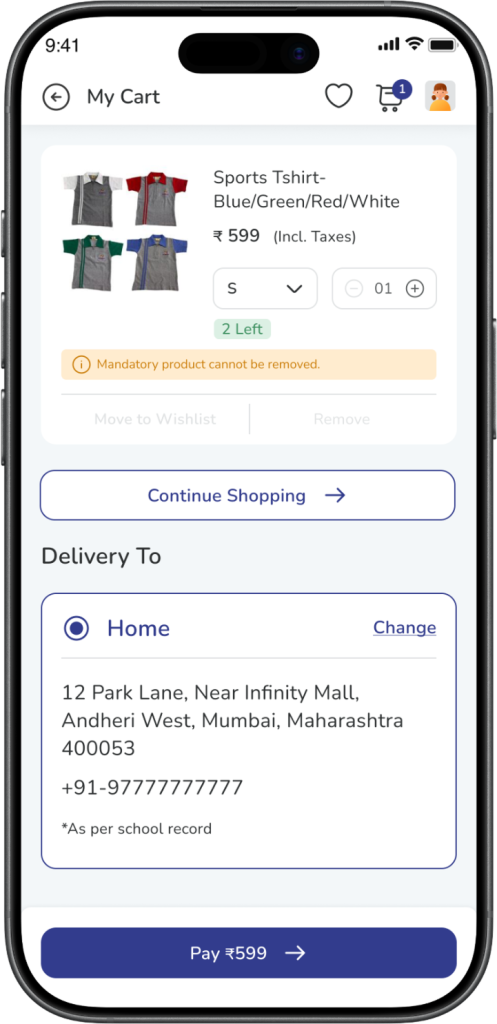
    Expected Result: You select the required size for each mandatory product.


    Step 5: Review quantity rules

    Mandatory products will be added with the required mandatory quantity.

    Please note:

    • you cannot reduce the quantity below the mandatory quantity
    • you cannot remove the mandatory product from the cart

    If needed, you may still increase the quantity and buy more than the mandatory quantity.
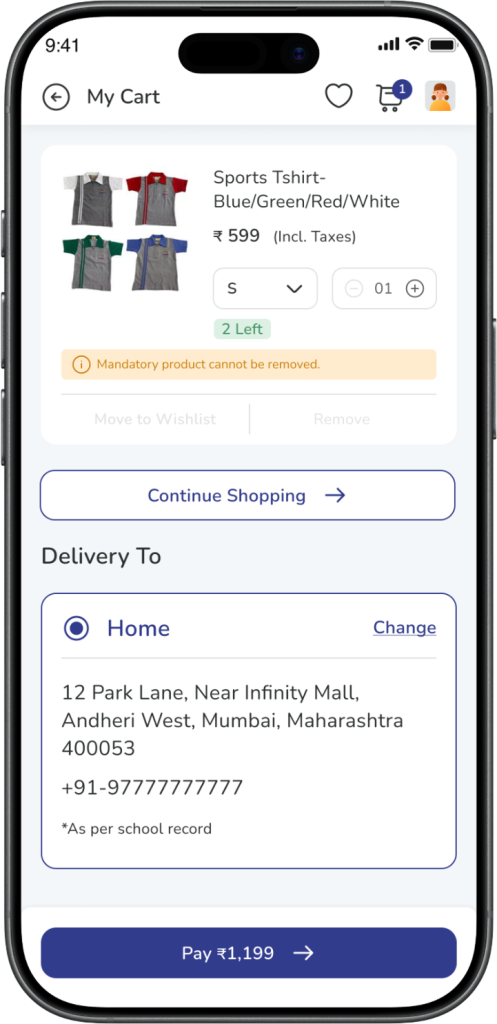
    Expected Result: The mandatory quantity remains fixed as minimum quantity in the cart.


    Step 6: Complete checkout for mandatory uniforms

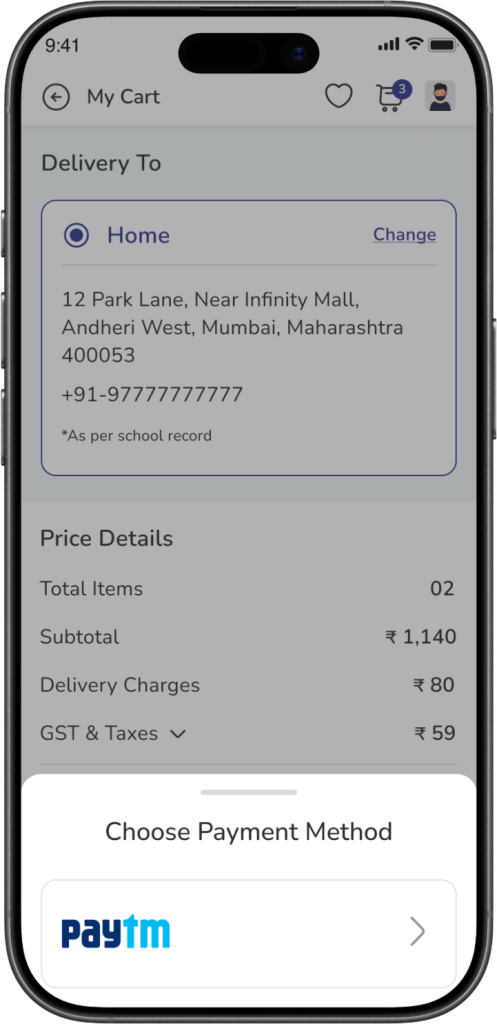
    After selecting the required sizes and reviewing the cart, continue with checkout and complete the payment.
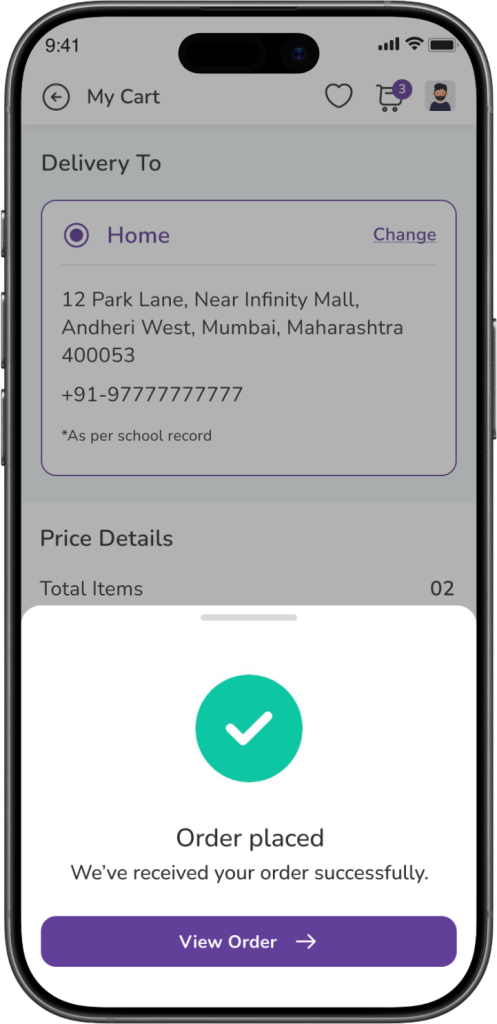
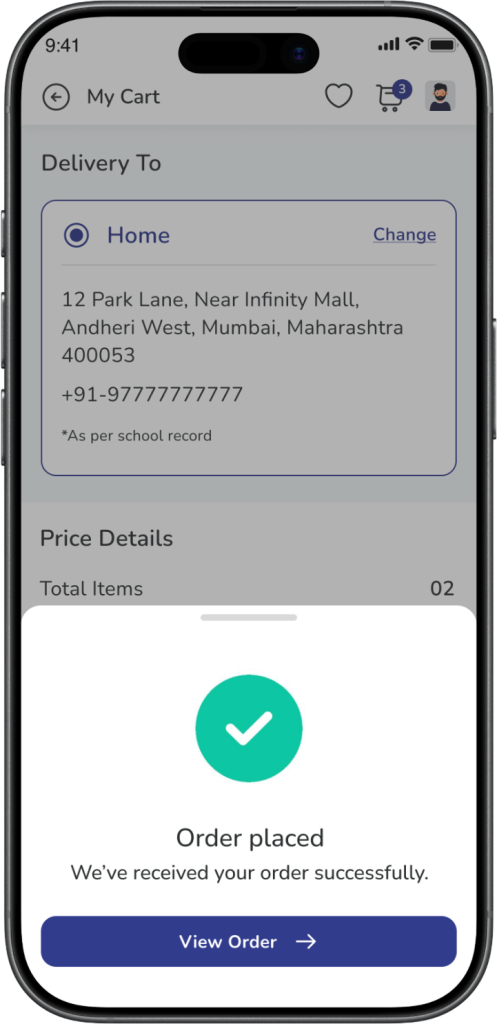
    Expected Result: The mandatory uniform order is placed successfully.


    Can You Buy Other Uniforms Also?

    Yes.

    You can add non-mandatory uniforms along with the mandatory uniforms and buy them together in the same cart.

    However, if mandatory uniforms are pending in the cart, you cannot skip them and buy only another uniform separately first.
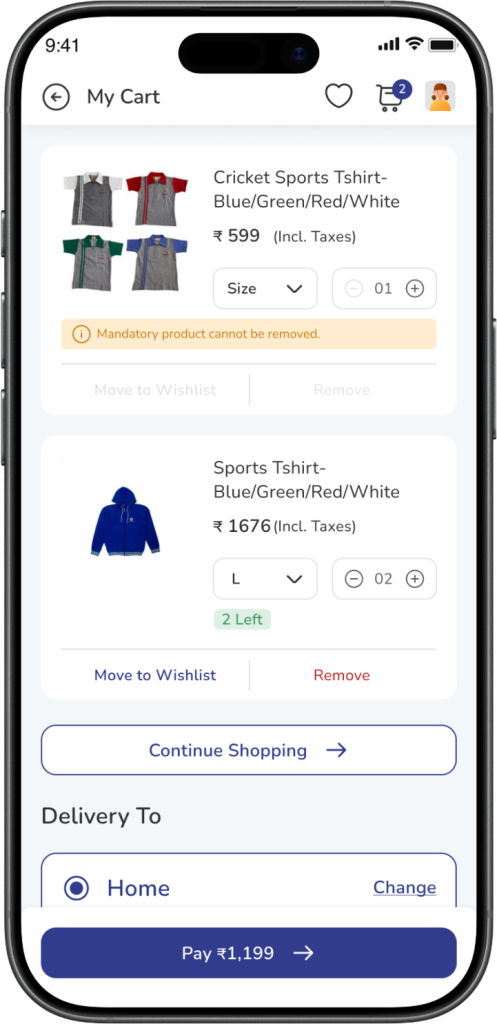
    Expected Result: You can buy mandatory and non-mandatory uniforms together, but mandatory products must be completed first.


    What Happens If You Try to Buy Another Uniform First?

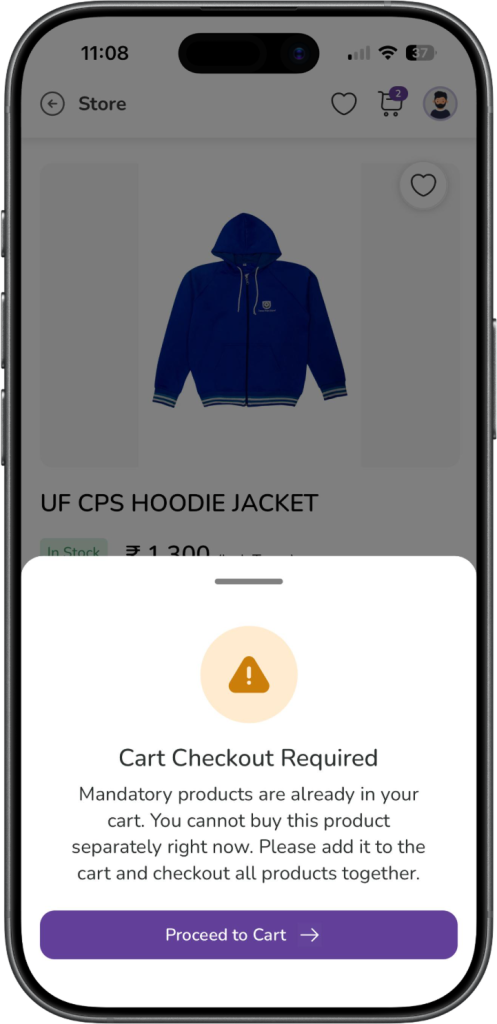
    If mandatory uniforms are already pending in your cart and you try to buy another uniform directly, the system will ask you to continue from the cart and complete the mandatory checkout first.

    This is because mandatory uniforms must be purchased before proceeding with separate uniform purchases.

    Expected Result: You are guided back to the cart to complete the mandatory uniform purchase first.

    What Happens If a Mandatory Uniform Is Out of Stock?

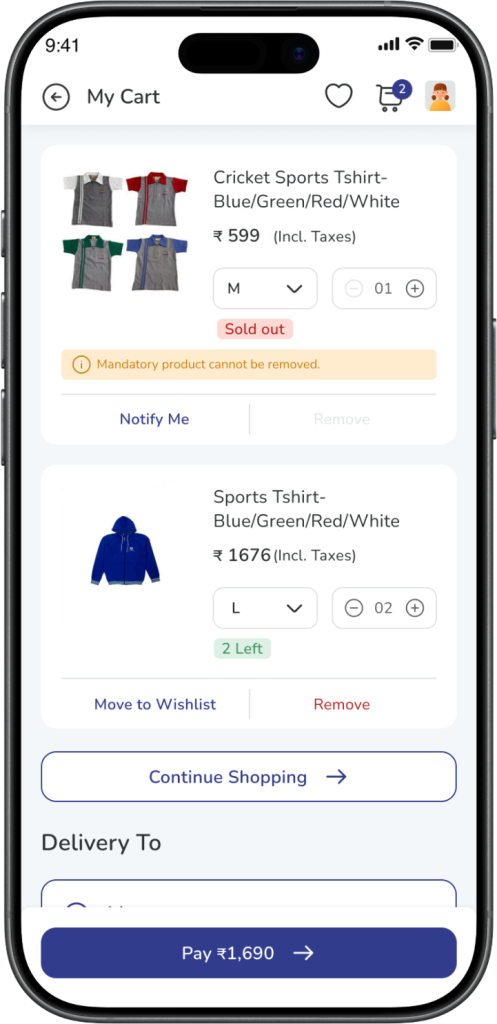
    If a mandatory uniform is currently out of stock:

    • it will still remain in the cart
    • it cannot be removed
    • you can buy it later once it comes back in stock

    If other mandatory uniforms are available in stock, those can still be purchased.
    Expected Result:
    The out-of-stock mandatory product remains in the cart and can be purchased later when available.


    Does This Affect Enrichment Programs or School Textbooks?

    No.

    Mandatory uniform logic applies only to the Uniforms flow.

    It does not stop you from buying:

    • Enrichment Programs
    • School Textbooks
    • other available non-uniform product categories

    You can continue to buy those whenever they are available in the Store Module.
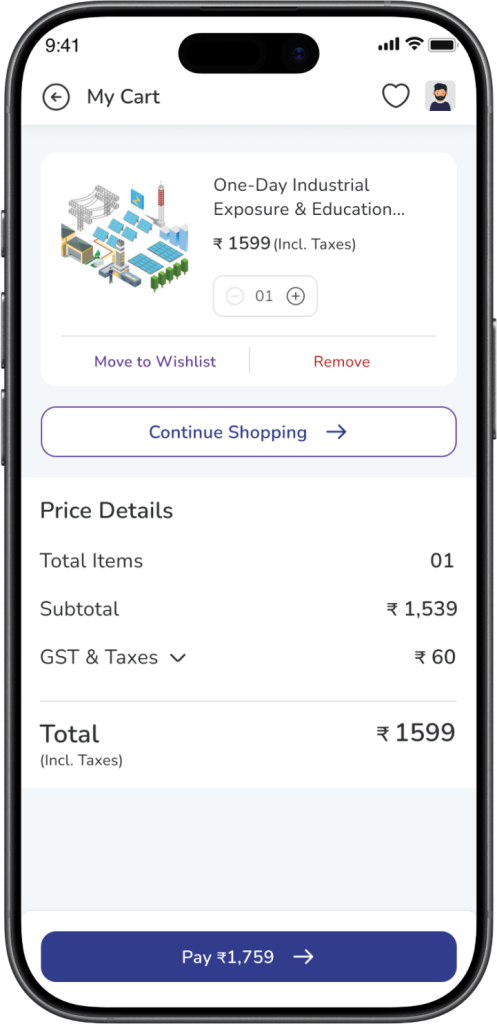
    Expected Result: Mandatory uniform rules apply only to uniforms, not to other product categories.


    When Does the Mandatory Logic Stop Applying?

    The mandatory logic is applicable only for the current academic year and only until the required mandatory uniforms are purchased.

    Once the mandatory products are purchased for that academic year:

    • they will not be added again automatically
    • normal uniform shopping flow will apply for the rest of that academic year

    If mandatory products are configured again for the next academic year, the same logic may apply again for that year.
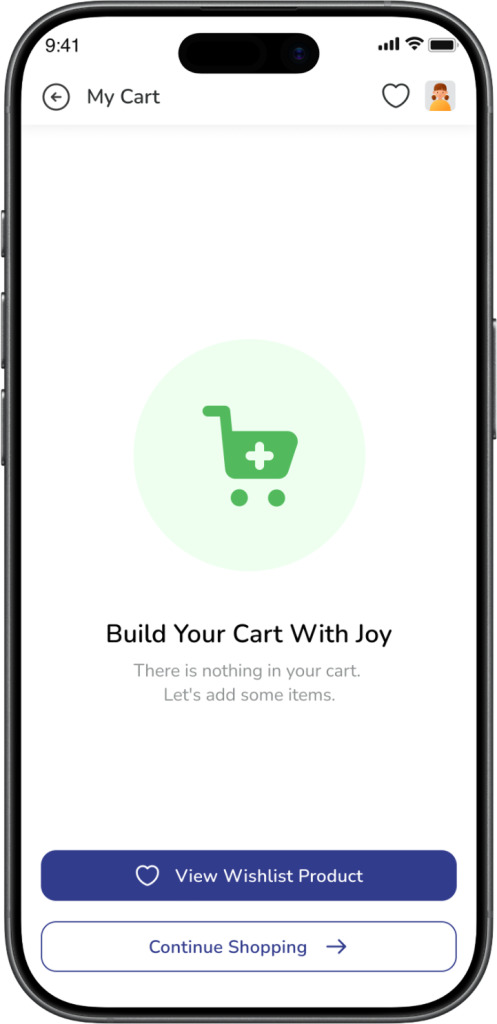
    Expected Result: After mandatory uniforms are purchased once for the academic year, normal shopping flow resumes.


    Frequently Asked Questions (FAQs)

    These uniforms are marked as mandatory for your child for the current academic year.

    No. Mandatory uniforms cannot be removed from the cart.

    No. You cannot reduce the quantity below the required mandatory quantity.

    Yes. You can buy more than the mandatory quantity if needed.

    You may not have selected the required size for all mandatory products yet.

    Yes. You can add other uniforms and buy them together with the mandatory uniforms.

    No. If mandatory uniforms are pending in the cart, they need to be purchased first before buying other uniforms separately.

    It will remain in the cart and can be purchased later once it comes back in stock.

    No. Mandatory uniform rules apply only to uniforms.

    No. Once purchased for the current academic year, the same mandatory logic will not apply again in that academic year.
  • How to Place an Order in the Store Module

    How to Place an Order in the Store Module

    Overview

    This guide explains how parents can open the Store Module, browse available products, and place an order for Uniforms, School Textbooks and Enrichment Programs in the app.

    What You’ll Learn

    • How to open the Store Module
    • How to browse products under All Products
    • How to order Uniforms
    • How to order Enrichment Programs
    • How to complete payment successfully
    • Where to check your placed orders
    • How to download invoice / receipt

    Who Can Use This

    Applicable Role:

    • Parent

    Prerequisites / Before you begin

    • You must be logged in to the app as a Parent
    • Your registered mobile number must be active for login
    • You must have internet access to browse products and complete payment

    Steps to Place an Order in the Store Module

    Step 1: Open the app

    Log in to the app as a Parent using your registered mobile number.

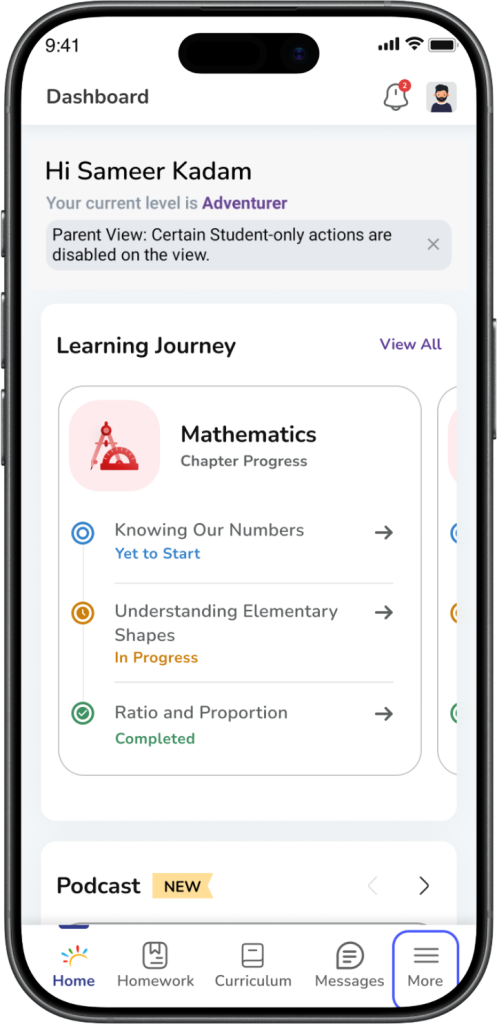
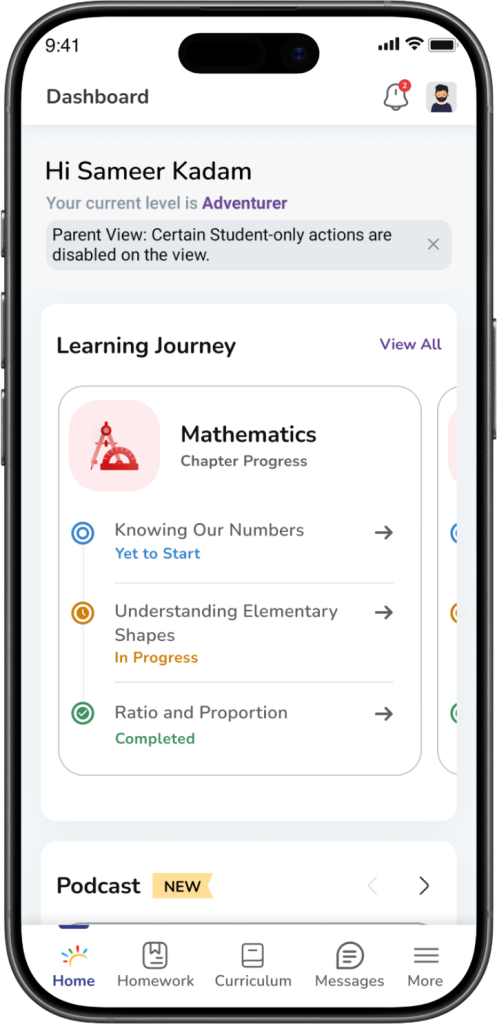
    Expected Result: You are logged in successfully and land on the dashboard.


    Step 2: Open More

    Tap More from the dashboard.

    Expected Result: The More menu opens.


    Step 3: Open Store

    Tap Store.

    Under Store, you will see the below options:

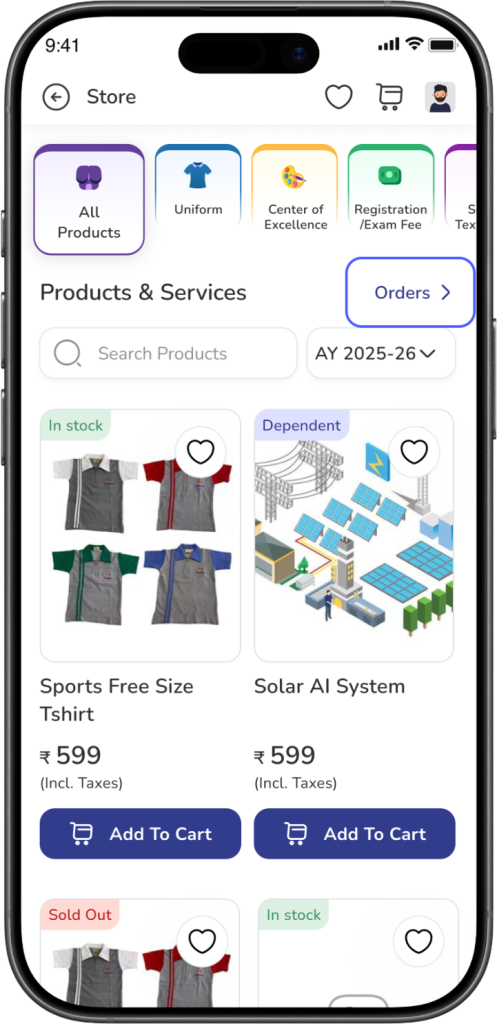
    • All Products
    • Wishlist
    • Orders

    Tap All Products.

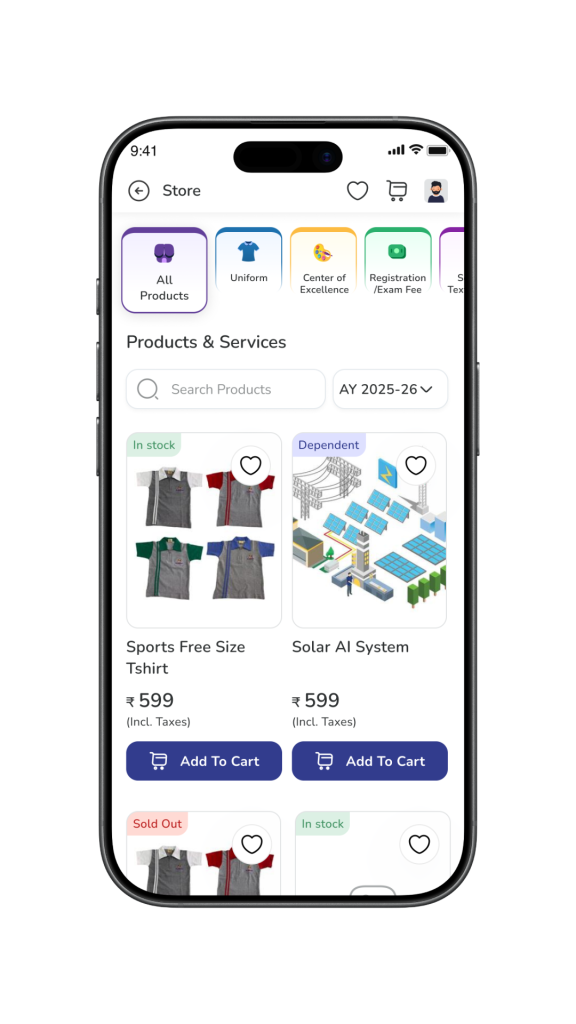
    Expected Result:The Store Module opens and shows the available products.


    Step 4: Browse products

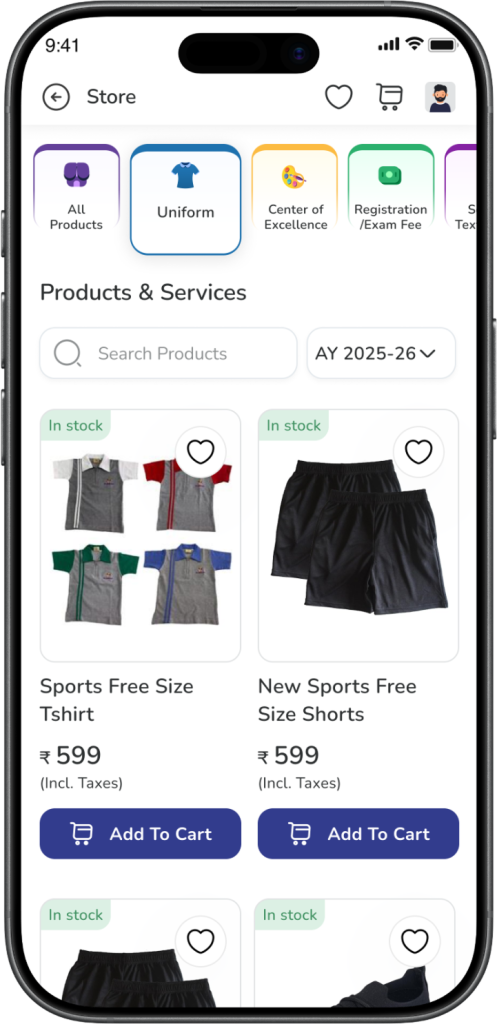
    On the All Products page, you can browse the available product categories such as Uniforms, School Textbooks, Centre of Excellence, and other available categories.

    Tap the product category or product you want to buy.

    Expected Result: The selected product listing or product details page opens.


    Steps to Order Uniforms

    Step 1: Select a uniform product

    Open the Uniforms section and tap the uniform product you want to buy.

    Expected Result: The product details page opens.


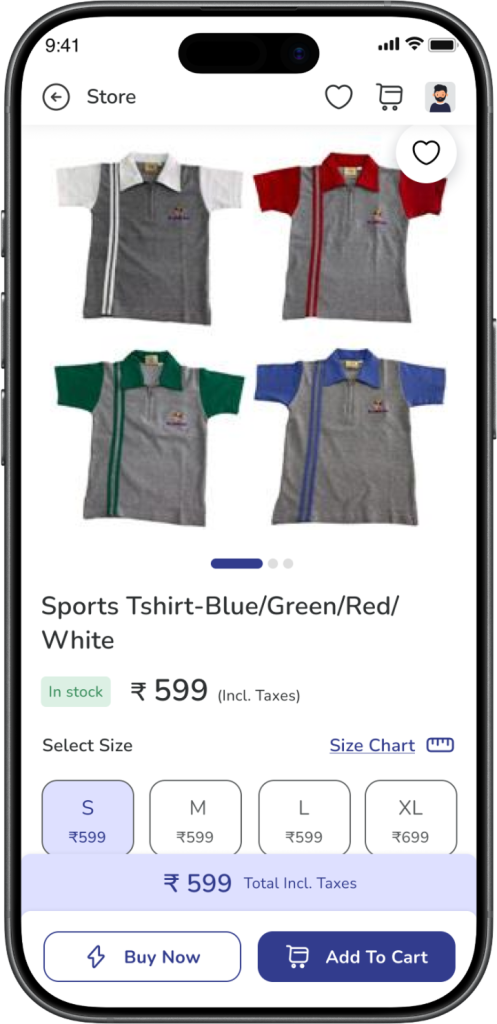
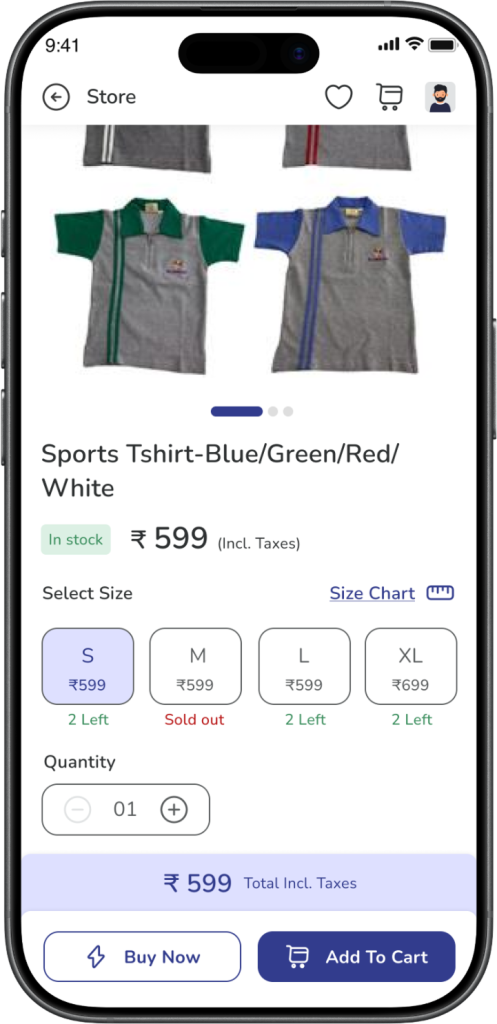
    Step 2: Choose size and quantity

    Select the required size and quantity for the uniform product (upto 10)

    Tap Add to Cart.

    Expected Result: The selected uniform is added to your cart.


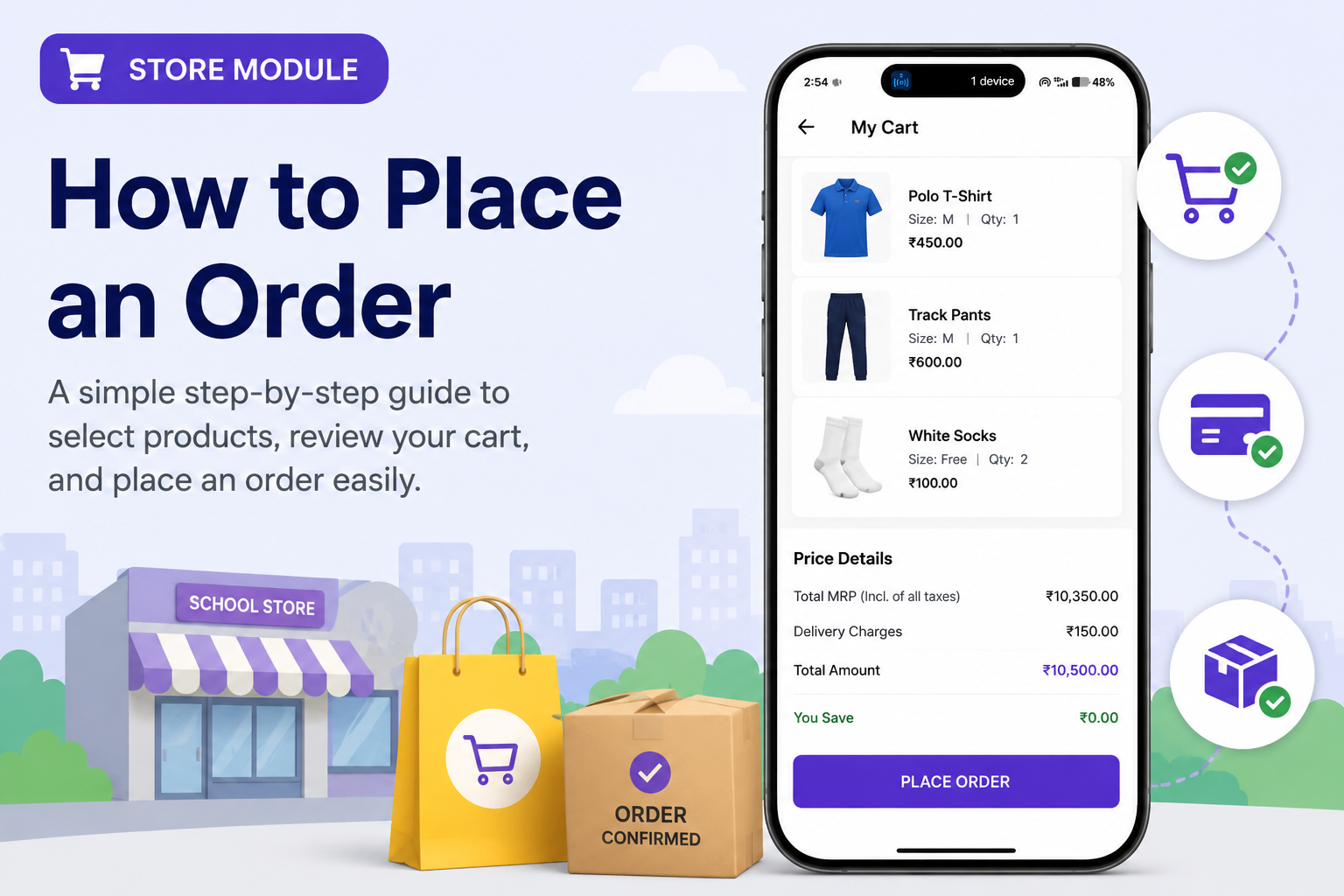
    Step 3: Review your cart

    Open the Cart and review the added uniform product.

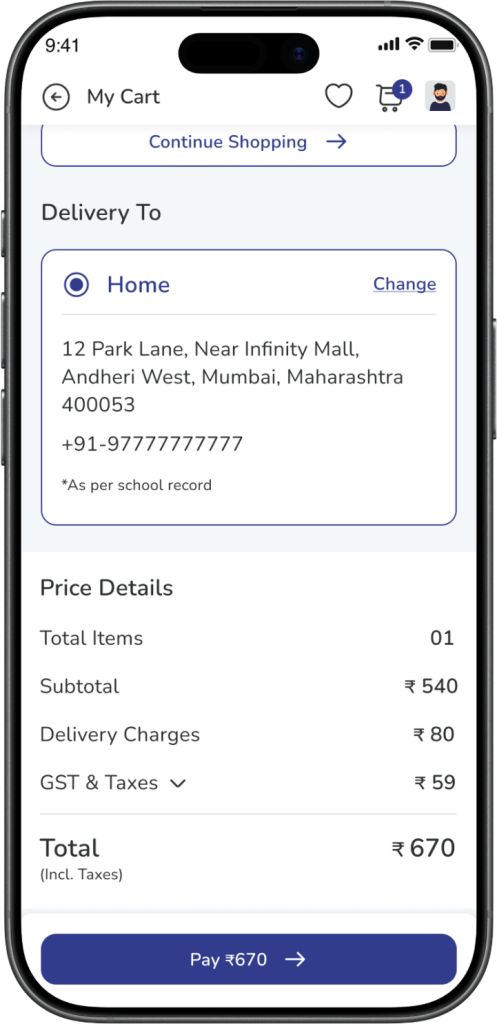
    From the cart, you can review or update:

    • size
    • quantity
    • delivery address with contact number
    • price details

    If needed, you can also add a new address or change the selected address.

    Expected Result: Your cart shows the correct product, quantity, address, and payable amount.


    Step 4: Proceed to payment

    Tap Pay to continue.

    You will be redirected to the payment gateway page.

    Complete the payment.

    Expected Result: Once the payment is successful, the uniform order is placed successfully.


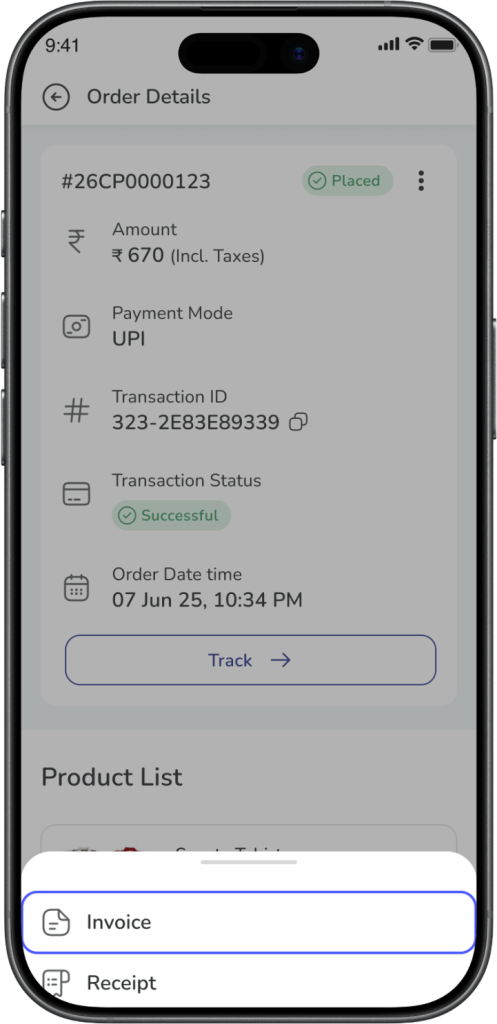
    Step 5: Download invoice / receipt for Uniform orders

    To download the invoice or receipt for your placed uniform order:

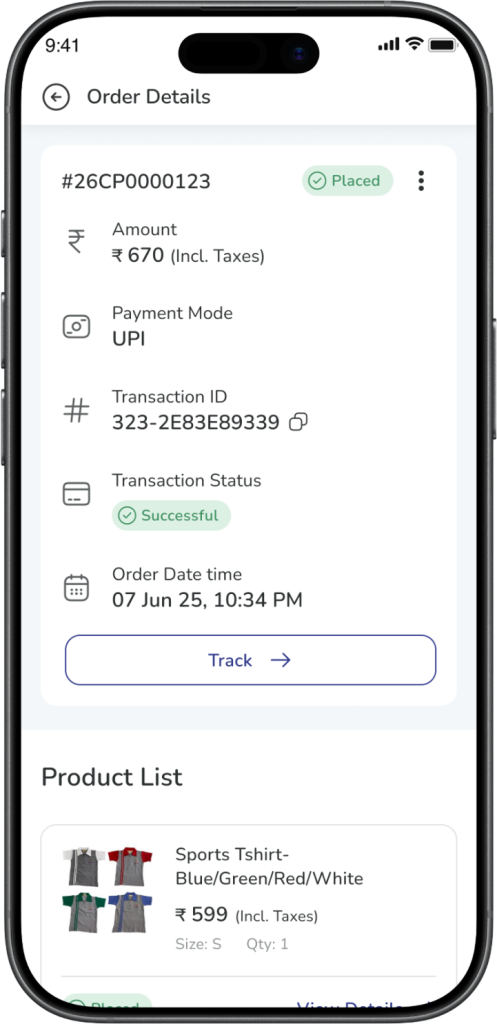
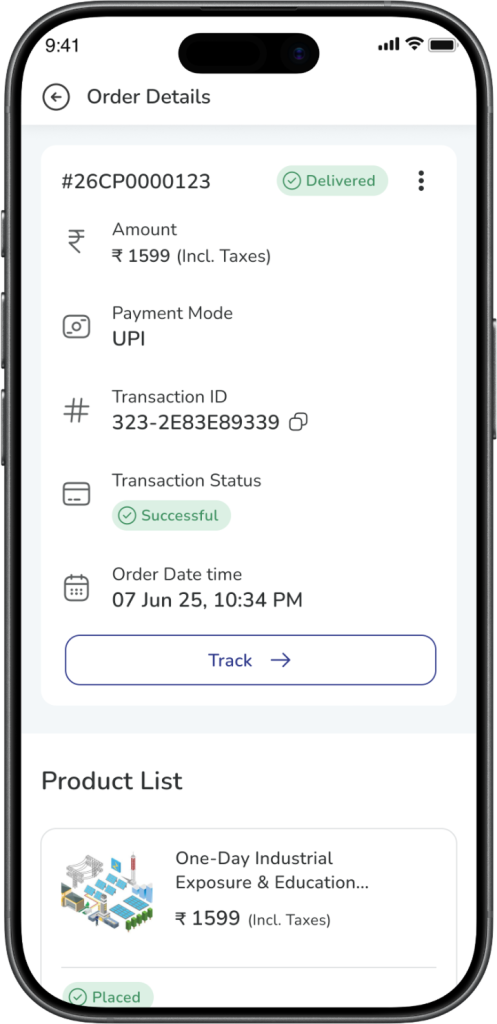
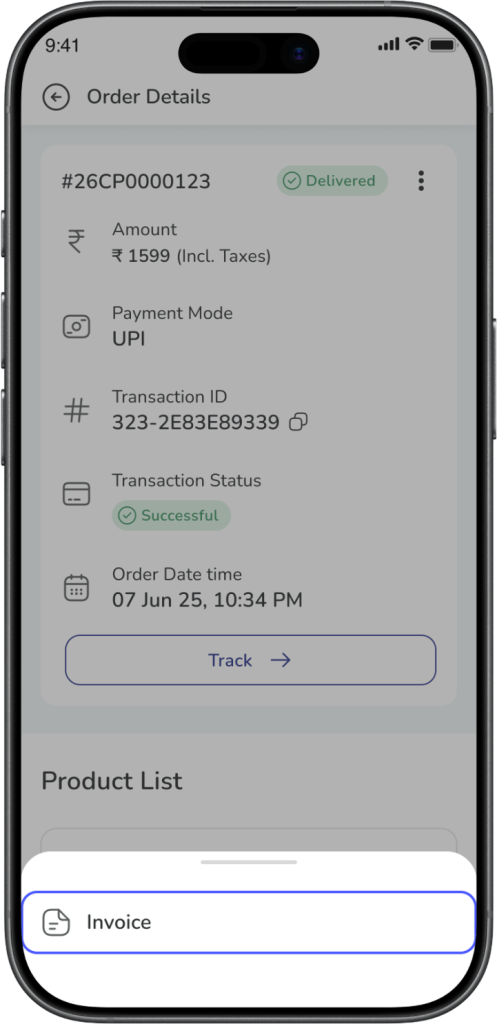
    1. Go to More → Store → Orders/Orders option in store landing screen
    2. Open the required order
    3. Tap the three dots on the order details page
    4. Download the available invoice / receipt

    Expected Result: You can view or download the invoice / receipt for the selected uniform order.


    Steps to Order Enrichment Programs

    Step 1: Select the program you want to buy

    From All Products, browse the available product categories such as School Textbooks, Centre of Excellence, and other available categories.

    Tap the product or program you want to buy.

    Expected Result: The selected product or program details page opens.


    Step 2: Choose how to buy

    You can place the order in either of these ways:

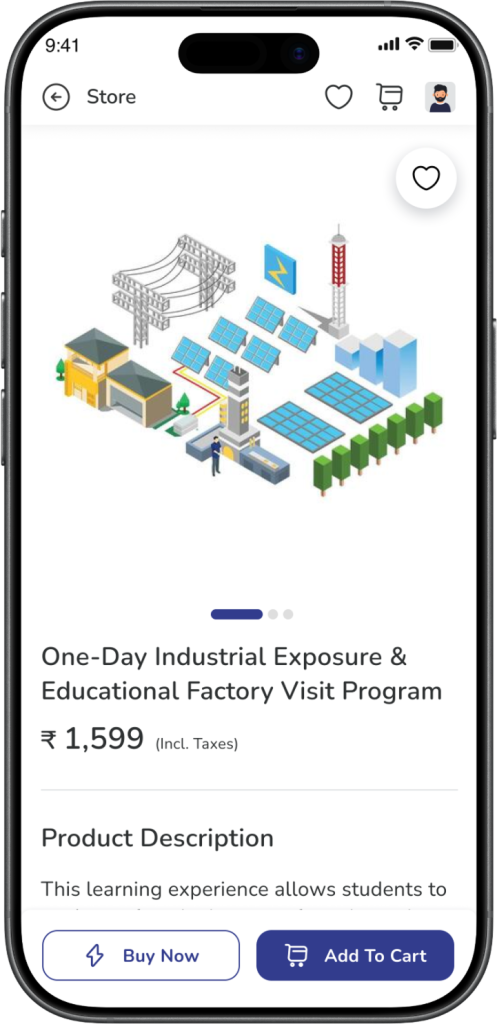
    • Buy Now – to buy the selected product directly
    • Add to Cart – to add the selected product to your cart and continue shopping

    Expected Result: The selected product is either taken forward directly for purchase or added to the cart successfully.


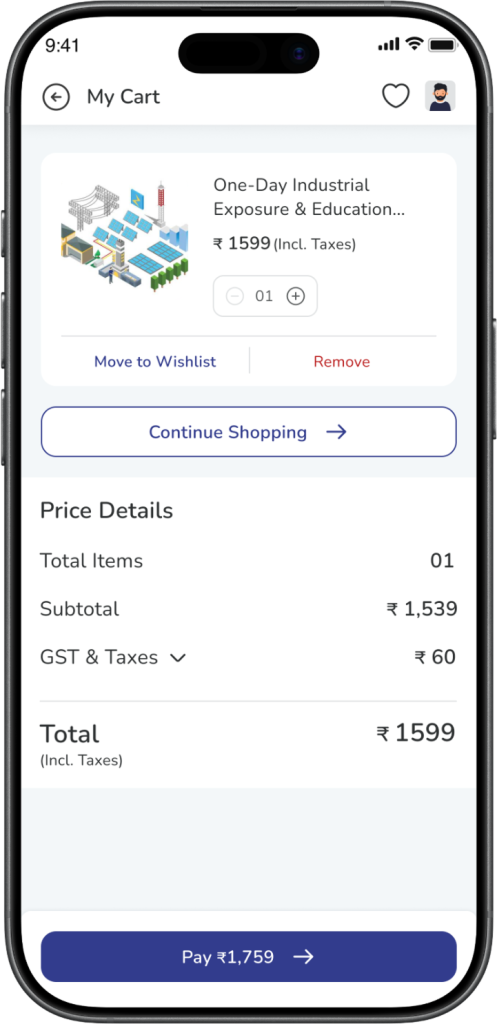
    Step 3: Review cart and pay

    If the product is added to cart, open the Cart and review the selected items.

    Check the price details and tap Pay.

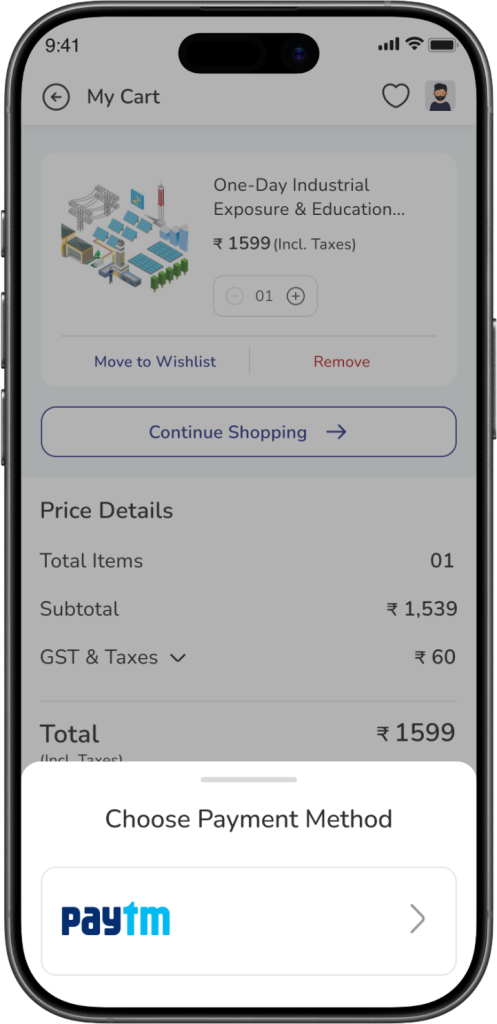
    You will be redirected to the payment gateway page.

    Complete the payment.

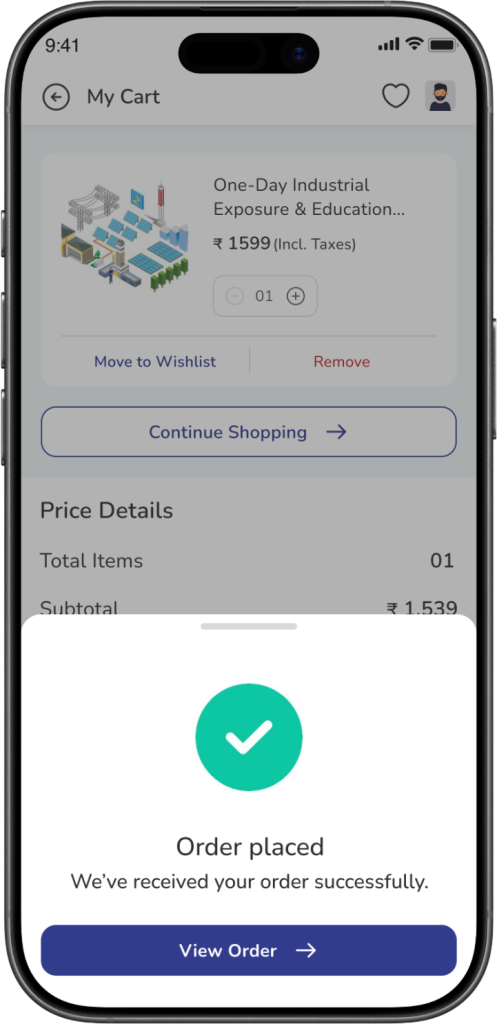
    Expected Result: Once the payment is successful, the order is placed successfully.


    Step 4: Download invoice for Enrichment Program orders

    To download the invoice for your placed order:

    1. Go to More → Store → Orders/Orders option in store landing screen
    2. Open the required order
    3. Tap the three dots on the order details page
    4. Download the available invoice

    Expected Result: You can view or download the invoice for the selected order.


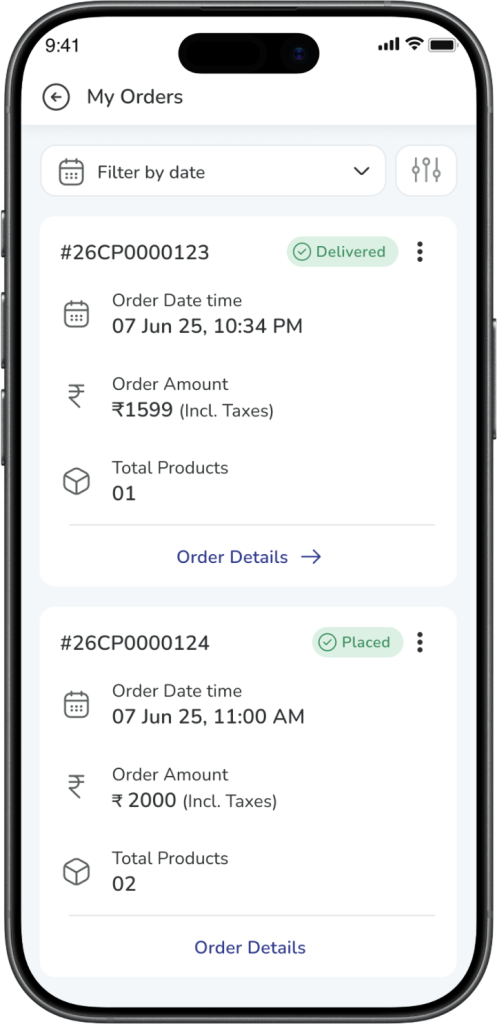
    Step to View Your Orders

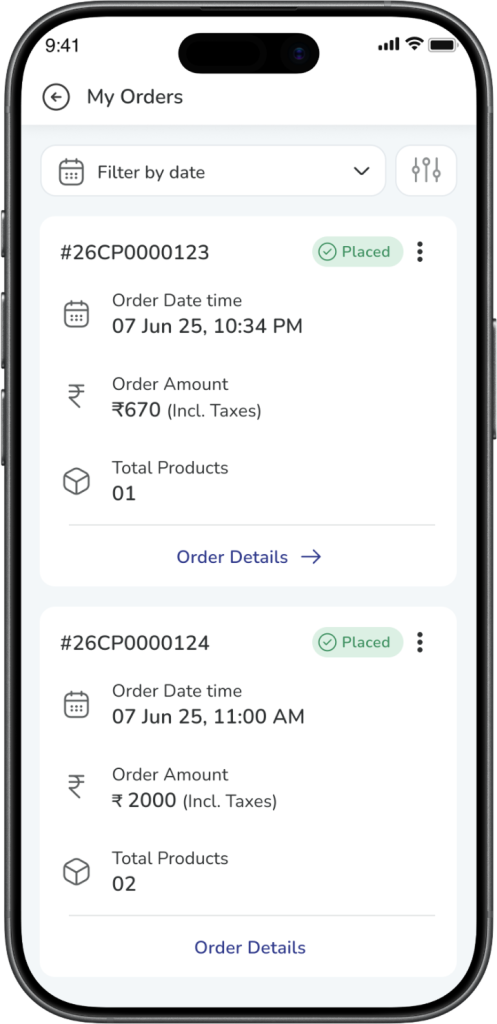
    Step: Open Orders

    To check your placed orders, you can use either of the below paths:

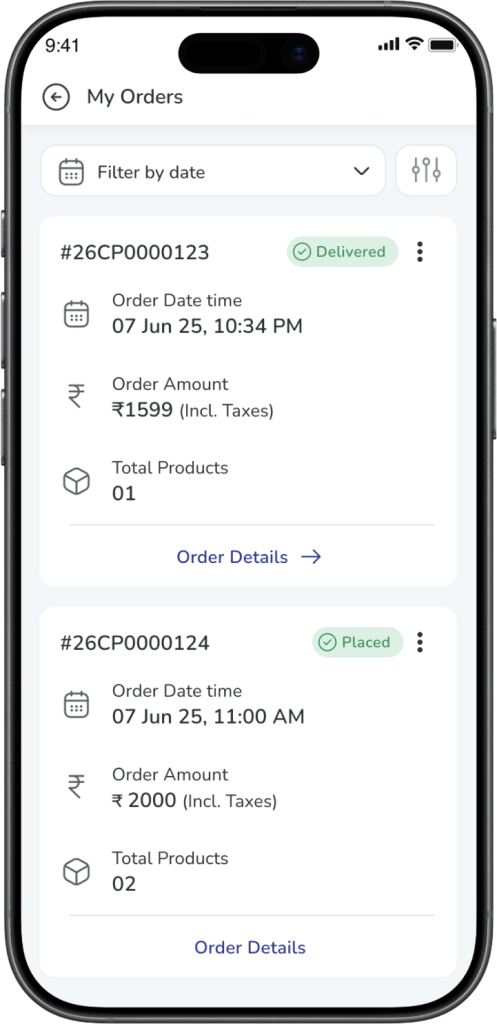
    • More → Store → Orders
    • or directly from the Store landing page → Orders

    Expected Result: You can see the list of orders placed through the Store Module


    Frequently Asked Questions (FAQs)

    You can open the Store Module by going to More → Store → All Products.

    The Store Module is available for parents.

    You can buy available products such as Uniforms, School Textbooks, Centre of Excellence, and other available product categories listed by your School.

    Open All Products, go to the Uniforms section, select the product, choose size and quantity, add it to the cart, and complete the payment.

    Open All Products, select the required program or category, and use Buy Now or Add to Cart to proceed with the purchase.

    Yes. While checking out uniform products from the cart, you can review the selected address, change it, or add a new one.

    You can check your orders by going to More → Store → Orders OR directly from the Store landing page → Orders

    Go to More → Store → Orders, open the required order, tap the three dots, and download the available invoice / receipt.

    Once the payment is completed successfully, your order is placed successfully and becomes visible in the Orders section.